Grand Theft Auto V is one of the most played games in the world. But a big problem is that many people play it on older or low end PCs and encounter issues like lag, stuttering, and low FPS.
In this Grand Theft Auto V Low PC settings guide, we’ll take you step by step through how to run GTA V smoothly on your less powerful PC, what settings to change, and how gameplay should be.
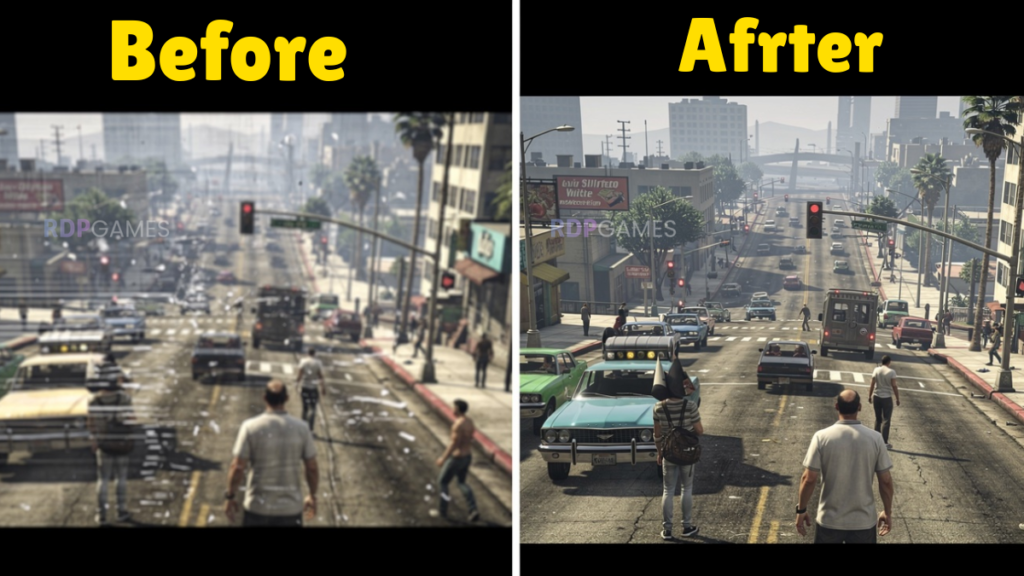
What is GTA V?
GTA V (Grand Theft Auto V) is an open-world action adventure game developed by Rockstar Games. This game was first released for consoles in 2013 and later on PC as well. The world of this game is very big, Los Santos city, villages, mountains, jungle, sea, everything in one game. Therefore this game gives a lot of work to both CPU and GPU.
Those using gaming laptops or older desktops often experience problems because their hardware isn’t strong enough to handle the game’s default “High” or “Ultra” settings. However, if you choose the right settings, the game can run at 30 FPS to 60 FPS, even on Intel HD Graphics.
Minimum System Requirements (Official Rockstar)
These are the specifications officially announced by Rockstar. If your PC is below these, the game won’t even start.
- OS: Windows 10 64-bit (KB4589212 or above)
- Processor: Intel Core 2 Quad CPU Q6600 @ 2.40GHz / AMD Phenom 9850 Quad-Core Processor @ 2.5GHz
- RAM: 4 GB
- Graphics Card: NVIDIA 9800 GT 1GB / AMD HD 4870 1GB / Intel HD 4000
- Storage: 72 GB free space
- DirectX: Version 10
Recommended System Requirements
This is the PC on which the game will run well on medium settings:
- OS: Windows 10 64-bit
- Processor: Intel Core i5 3470 @ 3.2GHz / AMD X8 FX-8350 @ 4GHz
- RAM: 8 GB
- Graphics Card: NVIDIA GTX 660 2GB / AMD HD 7870 2GB
- Storage: 72 GB SSD (recommended)
- DirectX: Version 11
Real Scenario for Low-End PC
If you have these things, the game can still run with a few settings:
- Intel Core i3 (4th gen or above) / AMD equivalent
- 4GB of RAM (6GB would be better)
- Intel HD Graphics 520 / 630 or any dedicated GPU with 1 GB VRAM
- Windows 10 64-bit
How to Install GTA V
You will find GTA V on these platforms: Steam (store.steampowered.com), Rockstar Games Launcher (rockstargames.com), Epic Games Store (sometimes it is also available for free here)
Buying from the Rockstar Games Launcher is the easiest way, as updates come directly. You can also buy from whichever platform offers it the cheapest, but make sure it’s an official platform.
STEP-1 First download the Rockstar Games Launcher. It’s available from Rockstar’s official website. Run the installer, install it, and create an account or login.
STEP 2 GTA V will appear in the Launcher if you’ve already purchased it. Click the Download button. The game weighs approximately 72 GB, so you’ll need good internet access. Those with slow internet can start the download at night.
STEP-3 When you first open the game, it will detect your hardware and suggest a default graphics preset. If your PC is low-end, it will suggest “Normal” or “Low.” Don’t change anything now. First, close the game once and apply the settings below.
STEP-4 Some antivirus programs block the GTA V launcher. Before launching the game, temporarily turn off Windows Defender or whatever antivirus you are using, launch the game, then turn it back on.
GTA V Low PC In-Game Graphics Settings
This is the most important part. Correcting these settings will reduce lag. If your monitor is 1080p (1920×1080) and the game is lagging, increase the resolution to 1280×720. This is the first thing that helps increase FPS.
First go to the pause menu, then Settings and then Graphics. Here first do this: Take a photo or write down the settings before the “Save Config” button, so you can revert if something goes wrong.
FXAA: It is not necessary to keep it on, turn it off.
MSAA: Off. This uses too much GPU.
NVIDIA TXAA: Off.
Population Density: Minimum level.
Population Variety: Minimum.
Distance Scaling: Up to 25 or 30. Setting it above 60 will load distant objects, putting pressure on the GPU.
Texture Quality: Normal. Agar VRAM 1 GB se kam ho to Low karo.
Shader Quality: Normal ya Low.
Shadow Quality: Low This consumes the most FPS.
Reflection Quality: Low.
Reflection MSAA: Off.
Water Quality: Normal.
Particles Quality: Low.
Grass Quality: Low or Off grass rendering is very heavy.
Soft Shadows: Off.
Post FX: Off ya Low.
Motion Blur Strength: Off.
Depth of Field: Off.
Anisotropic Filtering: Off.
Ambient Occlusion: Off.
Tessellation: Off.
Long Shadows: Off.
High Resolution Shadows: Off.
High Detail Streaming While Flying: Off.
Windows Level Settings
In-game settings alone aren’t enough. Windows also needs some tuning. Go to the Start menu, type “Power Plan,” and select “High Performance.” By default, Windows runs in “Balanced” mode, which limits CPU performance.
While playing the game, these all band together: Chrome, Discord (or minimize it in the background), Spotify, Antivirus real-time scan (temporarily), Windows Update. Open Task Manager (Ctrl + Shift + Esc), go to the Startup tab, and disable any unnecessary apps.
Increase Virtual RAM and GPU Driver
If you only have 4 GB of RAM, using Virtual RAM may be a little easier. Go to Control Panel, then System → Advanced System Settings → Advanced → Performance → Settings → Advanced → Virtual Memory. Here, select “Custom size” and set Initial Size to 4096, Maximum Size to 8192. Apply and restart.
For NVIDIA, download the latest Game Ready Driver from geforce.com. For AMD, download it from amd.com/en/support. For Intel HD, download it from intel.com/content/www/us/en/download-center.
NVIDIA Control Panel Settings (NVIDIA GPU Wale Users Ke Liye)
If you have an NVIDIA GPU, whether dedicated or laptop, take this extra step. Right-click on your desktop and open the NVIDIA Control Panel. Then go to “Manage 3D Settings” and select GTA V under the “Program Settings” tab. If it’s not listed, browse for it.
In settings ko change karo: Power management mode ko “Prefer Maximum Performance” rakho. Texture filtering quality ko “High Performance” karo. Vertical sync ko “Off” karo. Maximum pre-rendered frames ko “1” rakho.
AMD Radeon Settings (For AMD GPU Users)
There will be an icon of AMD Radeon Software in the System tray, right click and open it. Then go to the Gaming tab, find GTA V. Change the Anti-aliasing mode from “Override Application Settings” to “Use Application Settings”. Keep the Texture filtering quality on “Performance”. Enable Radeon Anti-Lag, this reduces input lag.
Special Tips for Intel HD Graphics
If you don’t have a dedicated GPU and only have Intel HD Graphics, it’s a bit challenging but possible. Set the resolution to 1280×720 or 1024×768. Turn off Grass completely. Turn off Shadow Quality. Turn off Shader Quality. Keep Texture Quality Normal. Lowering it doesn’t help much on Intel. Set Population Density to 0. FXAA Off. All MSAA Off.
The Intel HD 4000 gets around 20-30 FPS. The Intel HD 520 or 620 can get up to 25-35 FPS. The Intel UHD 630 can even get 40 FPS in some cases on low settings.
You don’t know the FPS while playing the game. That’s why an FPS counter is essential. If you’re playing through Steam, press Shift + F1 and turn on the FPS counter in the Steam Overlay. MSI Afterburner is a free tool that shows the FPS of every game, you can install it. Rockstar Games Launcher also has a basic stats option in Settings.
Game Crashing
First of all update the graphics driver. Then verify the install files of GTA V with “Verify Integrity of Game Files” on Steam, “Verify Game Files” on Rockstar Launcher. If VRAM is less than 1 GB then reduce the texture quality.
Game is not starting
Run Rockstar Games Launcher as administrator. Try temporarily turning off your antivirus. Check Windows Update. Sometimes DirectX updates are an issue.
Stuttering and Lag
Stuttering is often caused by RAM. If you have 4GB of RAM, increasing it to 8GB makes a big difference. Just close all background apps when playing games. Increase your pagefile (virtual RAM).
Lags a lot in Multiplayer (GTA Online)
GTA Online loads more frequently because more player data is processed. For online, you may need to lower the in-game settings even more. Set Population Density to 0, especially for online.
Extra Tips to Boost FPS
There are a few other things that not many people do, but they’re very helpful. This will increase your FPS in games, though not by much, but it will make the game run smoother.
Turn on Game Mode: In Windows 10/11, go to Settings → Gaming → Game Mode toggle on. This automatically manages background processes when a game is running.
Hardware Accelerated GPU Scheduling: Windows 11 ya Windows 10 (version 2004+) me yeh option milta hai. Settings → System → Display → Graphics → Change Default Graphics Settings → Hardware Accelerated GPU Scheduling. Isse thoda performance boost milta hai.
Create a GTA V Commandline File. Create a file named “commandline.txt” (no extension) in the GTA V install folder. Write the following in it:
-numThreads 4
-memrestrict 65536
-norestrictions
These things provide some additional optimizations to the game for low-end systems. Play in Fullscreen Mode: Windowed mode or Borderless Windowed mode results in a slight FPS loss. Use full Fullscreen mode.
Which FPS is considered good?
If you’re playing GTA V story mode: 30 FPS is also good, gameplay feels smooth. 45 FPS is a very good experience. 60 FPS is excellent. GTA Online requires a little more because fast reaction is important: 45 FPS minimum, 60 FPS best.